FAQ
General questions about Creative Golf
How to set accurate ball flight direction?
Read this MANUAL.
Is it possible to place own advertisements in Creative Golf?
Yes, it is possible to place advertisements on billboards, balloons and airships on the pre-prepared courses. In the folder with the Creative Golf software installed you will find the \advert\Billboards\ directory. Here you will find the directories assigned to each type of object. In each directory, there is a texture with a pre-set pattern and a border. The border delimits the area of the texture that will appear on the object. The part of the image outside this border will not be displayed. The pre-set texture can be deleted. Multiple textures can be inserted into directories. In this case, the textures in each folder will alternate at 30 second intervals.
These advertisements are displayed on the base package courses – Range Academy, Target Golf and Long Mesquite and the course Windy Valley.
Another option is to display an advertisement when moving from a played hole to a new hole. In the folder with the Creative Golf software installed you will find the \advert\ directory. In this directory, put the advertising images you want to use for the advertisements between the wells. Then set their use in the same directory in the Adverts.conf file.
In the [#Global#] section, set the properties of the images according to the prepared template. If you use “x”, the image will be used between all wells that do not have a different image assigned. If the “x” is next to multiple advertisement images, these images will be alternated. If you enter a number instead of an “x”, the specific advertisement will appear in front of the selected hole. If you enter 1 instead of “x”, you must select ShowOnFirstHole = yes in [#General#], otherwise the advertisement will not be displayed before the first hole.
You can also use a USB key for the advertisements between holes. Create a folder called Advert directly on the key. Copy the Adverts.conf file into this folder and modify it following the same procedure as mentioned above. Paste the desired images into the same folder. The contents of the advert directory on the USB key take precedence over the Advert directory in the location where the Creative Golf game is installed. The USB key must be connected either before Creative Golf is turned on, or should Creative Golf be running while the USB key is connected, the game must be restarted. If you connect the USB key while playing Creative Golf, the USB key will be ignored by the game.
How to display game on secondary screen?
If the window mode is set to borderless window, the position and size of the game window can be adjusted.
The position and size can be set by adding parameters to the target in the icon properties. The steps are:
1. Start Creative Golf/Golfisimo and change in Settings Window mode to Borderless window, close Creative Golf
2. Select Creative Golf/Golfisimo icon, click by right mouse button, go to Properties, tab Shortcut and add to Target space (” “) and
/left=1920 /top=0 /width=1920 /height=1080
For left use size of your primary monitor. Top use if there is vertical monitor configuration.
Set the size of the secondary monitor using width and height.
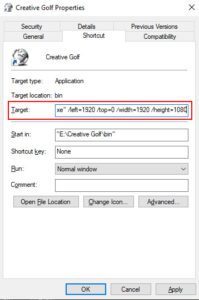
3. Save and run Creative Golf/Golfisimo by icon.
Why does the shot trajectory start above the ground?
In Simulator mode, the real ball is positioned in front of the projection screen. The displayed trajectory therefore starts where the ball reaches the screen plane, already in the air. This is expected and does not mean the shot was measured as starting above the tee.
To display the virtual ball and the full trajectory from the tee, select Settings → Playing area → Without canvas.
For a simulator with a projection screen, we recommend using Simulator mode. Select Next and enter the actual screen dimensions, ball-to-screen distance and lateral ball position. If separate left- and right-handed positions are enabled, check both configurations.
Questions about Creative Golf for Garmin
Can I connect my Garmin Approach R10 directly to Creative Golf?
Yes. Creative Golf Advanced 3.1 supports a direct Bluetooth connection to the Garmin Approach R10, without a mobile app.
The existing connection method using the Creative Golf Garmin Connecter mobile app is also available.
Do I need a connector app for the Garmin Approach R50?
No additional connector app is required. Creative Golf communicates directly with the Garmin Approach R50 over a local Wi-Fi connection.
You can use either your home Wi-Fi network or connect your PC to the R50’s Wi-Fi hotspot.
What can I try if my Garmin Approach R50 disconnects during play?
If you experience disconnections while using your home Wi-Fi network, try connecting your PC to the R50’s Wi-Fi hotspot instead:
- Close Creative Golf and any other simulator software.
- On the R50, open the partner software connection screen and select Creative Golf.
- Connect your PC to the R50’s Wi-Fi hotspot.
- Start Creative Golf and try playing again.
If the problem continues, please contact support@creativegolf.com and include your Creative Golf version and the Garmin.log file from the game’s installation folder:
C:\ProgramData\Creative Golf Advanced\bin
An internet connection is still required for online features and periodic licence verification.
Questions about Creative Golf for SkyTrak
What can I do if the game for SkyTrak crash after the start or during the connection to SkyTrak?
Please install the newest update. You can find it HERE in the section Creative Golf Updates.
If you have an older version: 2.8 you need to install the 2.8 → 2.10 update first.
How do I install the Creative Golf Advanced upgrade for SkyTrak?
Download both Creative Golf Advanced files (the .exe and .7z files) using the link in your order confirmation. Run the .exe file and install it into a new folder (do not install it over your existing version 2.11). Use your product key to activate the new version. Then, go to Settings / Game Setup / Game Options 2 / Tracking device to ensure your device is correctly selected.